Password Update
1.1)Ensure that you are signed into your profile. You are signed into the account if your see the below: (Dashboard, Domains, Services, etc)
1.2.) Click on 'Manage Web Services'

1.3.) Search the desired hosting & and click the 'Active' status

1.4.) Under 'Manage' click on 'Log in to cPanel'

1.5.) Locate the email section, and select "Email Accounts"

1.4.) Locate the email address in question and select "Manage"

1.5.) Enter a new password
Under the "Security" section select "New Password"
(Note: Do not click "Generate" as this will give you an automated password)

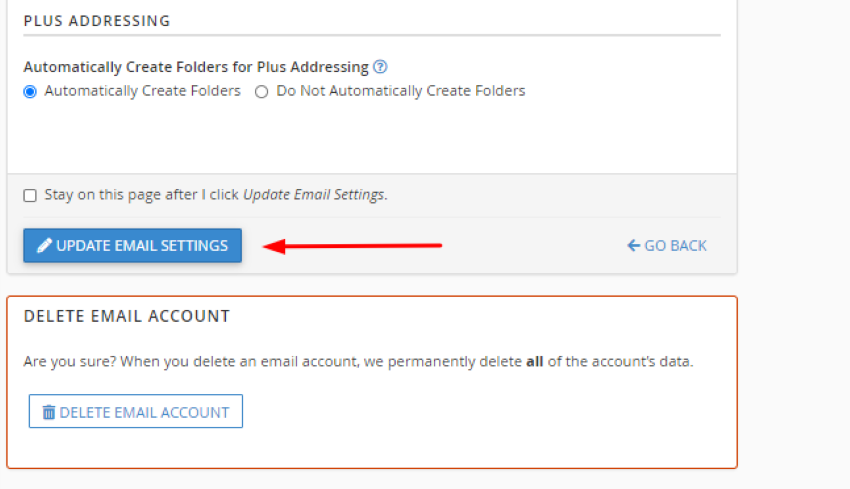
1.6.) Updating the Password
Scroll to the bottom of the page and select "Update Email Settings"
1.7.) All done!
Your password has been successfully updated server-side and can now be changed on your local mail application.
